Support
Managing Team Members
Efficiently managing your team members in Compozer ensures seamless collaboration and productivity. This includes adding new members, adjusting roles, and managing access to the team's courses. Here's how you can handle various aspects of team management:
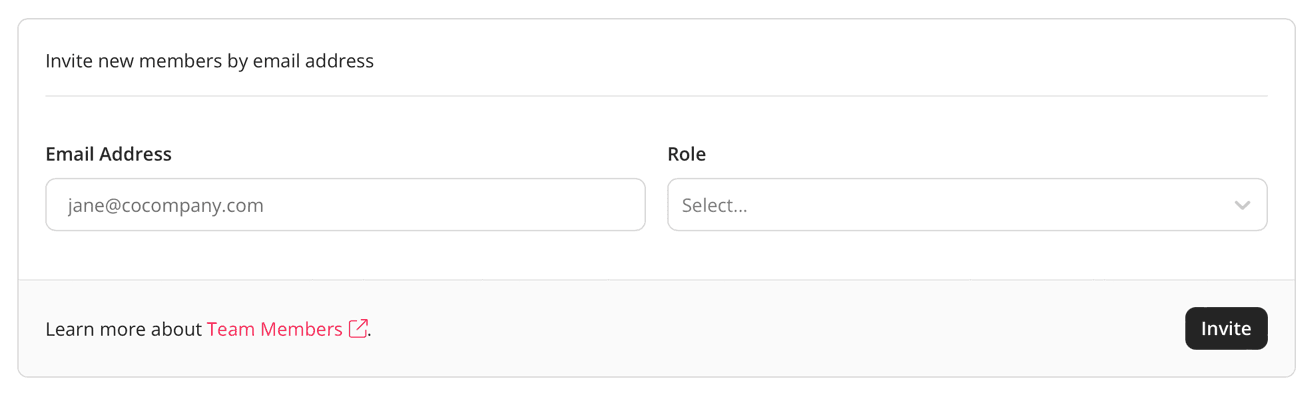
Add Members
- Log into your settings management console and click "Members" on the left.
- Input the new team member's email, assign a role, and click "Invite".
- New members will receive an invitation email, granting them access to your team's courses.
Remove Members
- Log into your settings management console and click "Members" on the left.
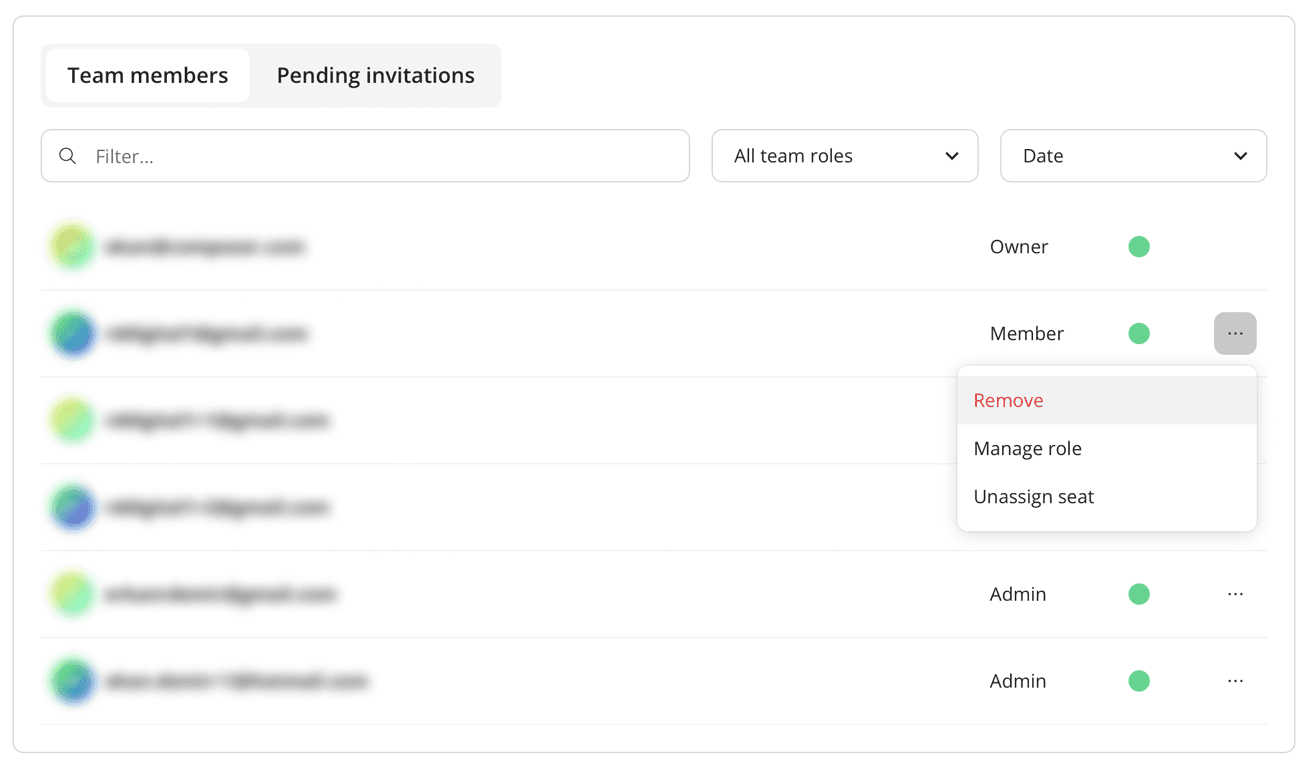
- Locate the list of all current members under "Team Members".
- Click the 3-dot icon next to the member you wish to remove and select "Remove".
Manage Member Roles
- Log into your settings management console and click "Members" on the left.
- Browse through the list of current members.
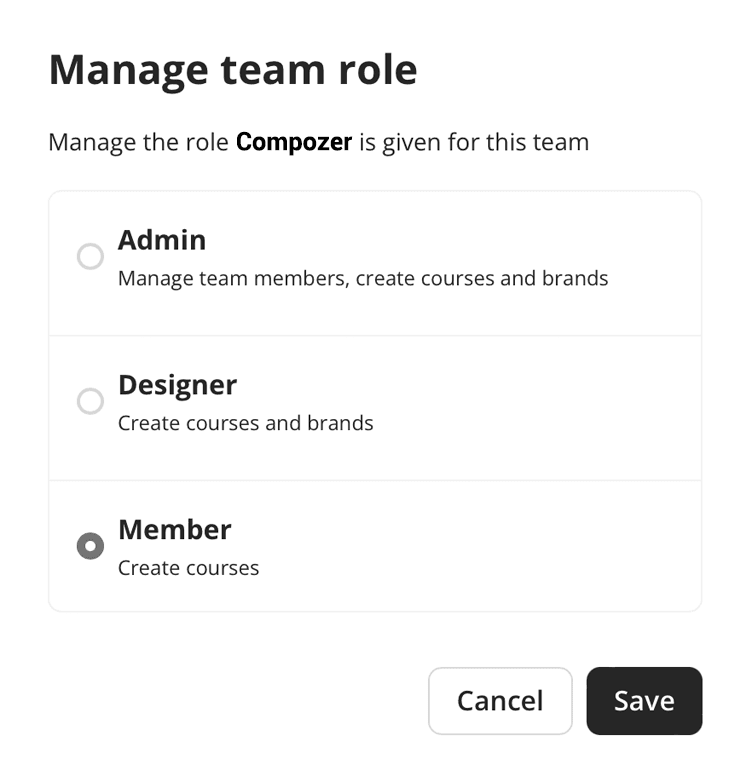
- Click the 3-dot icon next to the member whose role you wish to manage, and select "Manage role".
Unassign Seats
- Log into your settings management console and click "Members" on the left.
- View the list of all current members.
- Click the 3-dot icon next to the member whose seat you want to unassign.
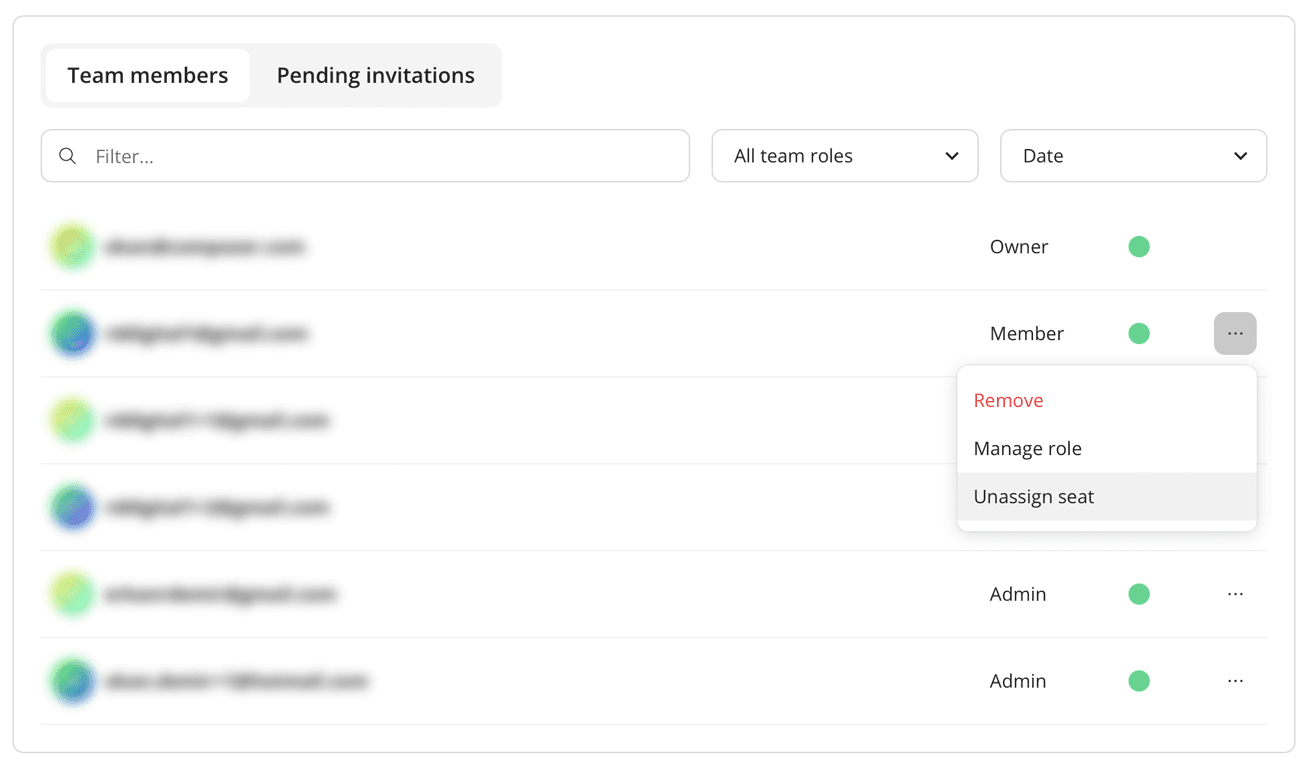
Unassigning a member's seat frees it up for a new assignment. The unassigned member will lose access to your team until they are reassigned a new seat.
Find out more about the different user roles and permissions by clicking the link below.
Compozer team roles and permissions