Support
How To Use the driverOptions.js File
The driverOptions.js file gives you quick and easy access to SCORM driver settings for your exported Compozer courses. It's a small, easy-to-edit file that lets you change SCORM driver settings without modifying any other course files.
Where to Find the File
The driverOptions.js file is located in the scormdriver folder of SCORM 1.2, SCORM 2004, AICC, cmi5, and xAPI exported content. To access it:
- Export your course as an LMS package and save the zip file to your computer.
- Extract the zip file containing your course, then navigate to the scormdriver folder.
- Open the driverOptions.js file in a text editor, such as Notepad.
Available Options
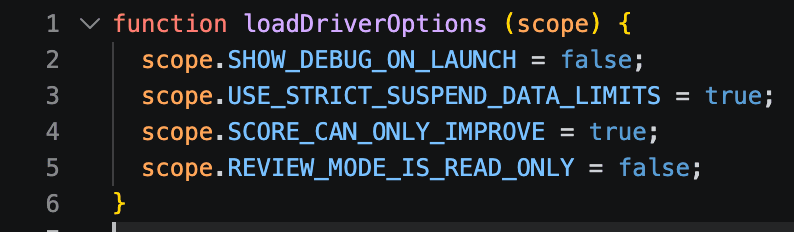
The driverOptions.js file contains the following settings by default:
SHOW_DEBUG_ON_LAUNCH
Enables LMS debug mode when set to true. When enabled, the course opens in one browser window while a debug log opens in another, allowing you to troubleshoot communication between your LMS and your Compozer content.
Default: false
See How to Enable LMS Debug Mode for detailed instructions.
USE_STRICT_SUSPEND_DATA_LIMITS
When set to true, suspend data is restricted to the character limits defined by AICC, SCORM 1.2, and SCORM 2004 standards. When set to false, suspend data is allowed to exceed these limits.
Default: true
Most LMSs don't enforce strict suspend data limits. If you're experiencing issues with suspend data being truncated, see Exceeding SCORM Suspend Data Limits.
SCORE_CAN_ONLY_IMPROVE
When set to true, the score reported to the LMS can only increase. A lower score on a subsequent attempt will not overwrite a previous higher score. When set to false, the most recent score is always reported, regardless of whether it is higher or lower than a previous attempt.
Default: true
REVIEW_MODE_IS_READ_ONLY
Controls whether completion data is sent to the LMS when a learner revisits a course they have already completed or passed. When set to true, no data is sent to the LMS on subsequent visits. When set to false, completion data is sent to the LMS even if the course is already completed or passed.
Default: false
How to Edit the File
- Export your course as an LMS package and save the zip file to your computer.
- Extract the zip file containing your course, then navigate to the scormdriver folder.
- Open the driverOptions.js file in a text editor, such as Notepad.
- Change the value of the option you want to modify. For example, to enable debug mode, change:
scope.SHOW_DEBUG_ON_LAUNCH = false; - To:
scope.SHOW_DEBUG_ON_LAUNCH = true; - Save and close the driverOptions.js file.
- Re-zip the course files (not the folder containing them) and upload the zip file to your LMS.