Support
How to translate a course
Reach learners in their own language. Compozer uses AI to create a translated copy of your course in each language you choose, ready for you to review, share and export.
Here's how to translate a course, work with translated copies and check how many credits you'll need.
What you'll need
- A paid plan. AI translation is available on all paid plans.
- Enough credits in your team's balance to cover the translation. Learn more in How credits work.
Create a translated copy
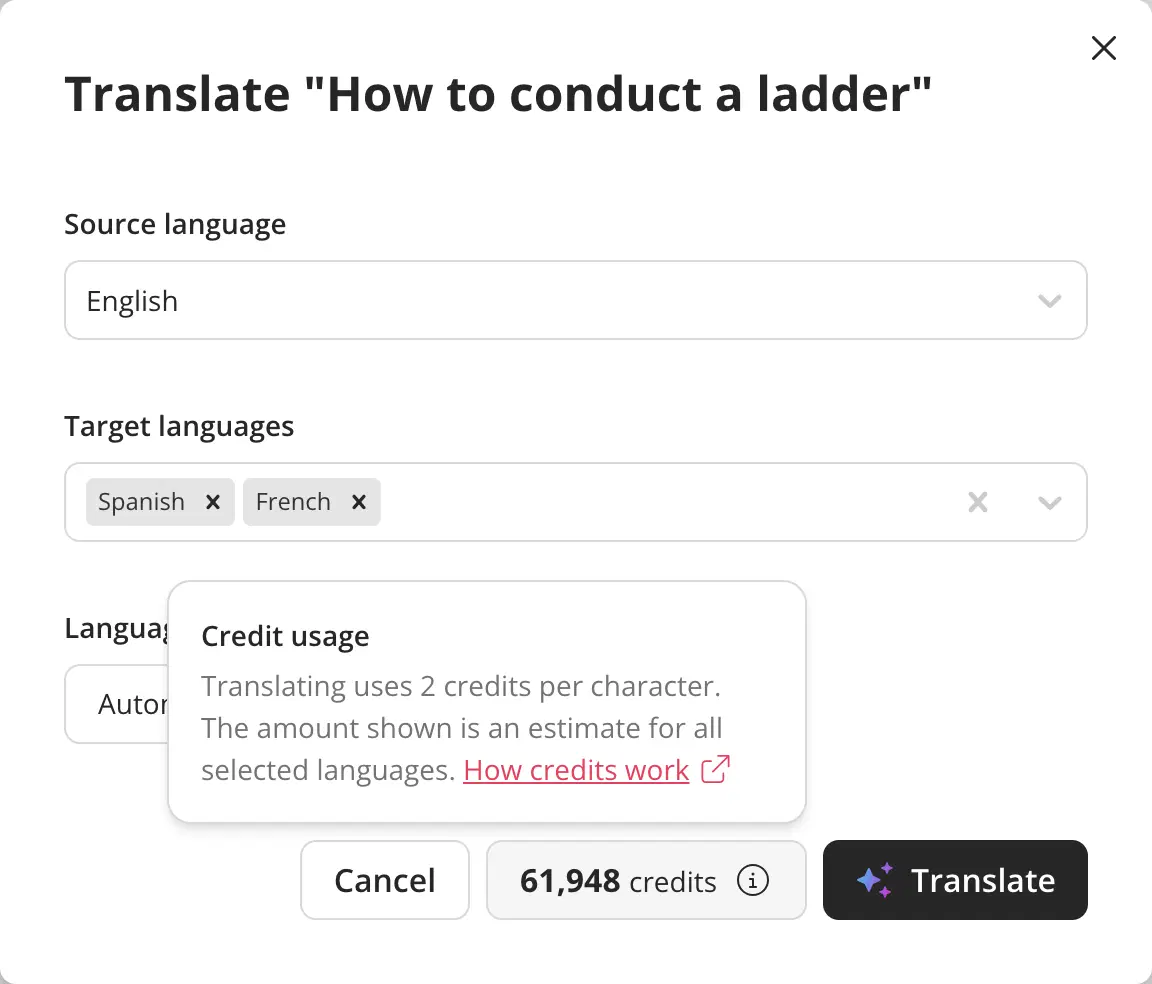
- On the Courses page, hover over the course you want to translate. Open the three-dot menu and select Translate.
- Check that the Source language is correct.
- Select one or more Target languages.
- If available, choose a Language formality setting. This is optional and only applies to languages that support it.
- Review the credit estimate next to the Translate button, then select Translate to begin.
Work with translated courses
Each translation is a separate course that you can review, edit, share and export independently. Changes you make to the original course later won't carry over to the translated copies.
Credit usage for translation
Translation uses 2 credits per character for each target language. The total depends on the length of your course and the number of languages you select. You'll see a credit estimate before you confirm the translation.
Frequently asked questions
How do I choose the source language?
The source language is the language your course is written in. It's set to English by default, so if your course is written in another language, select that language before you translate. Choosing the correct source language gives you the most accurate translation and determines which target languages are available.
Can I translate a translated course?
No. A translated course can't be translated again. To add another language, translate the original course.
What if my team doesn't have enough credits?
Your team will need to add credits before you can start the translation. Team owners can purchase credits from the Credits page in team settings.
Does editing or exporting a translated course use credits?
No. Once a course is translated, you can edit, share and export it as often as you like without using additional credits. Each new translation uses credits, even if you've translated the course before.